Guide · · 5 dk okuma
How to get a free @mailkodo.com address and add it to your phone
Step by step: choose an address on MAILKODO, open the mailbox and add it to a mail app over IMAP and SMTP.
Yazıyı oku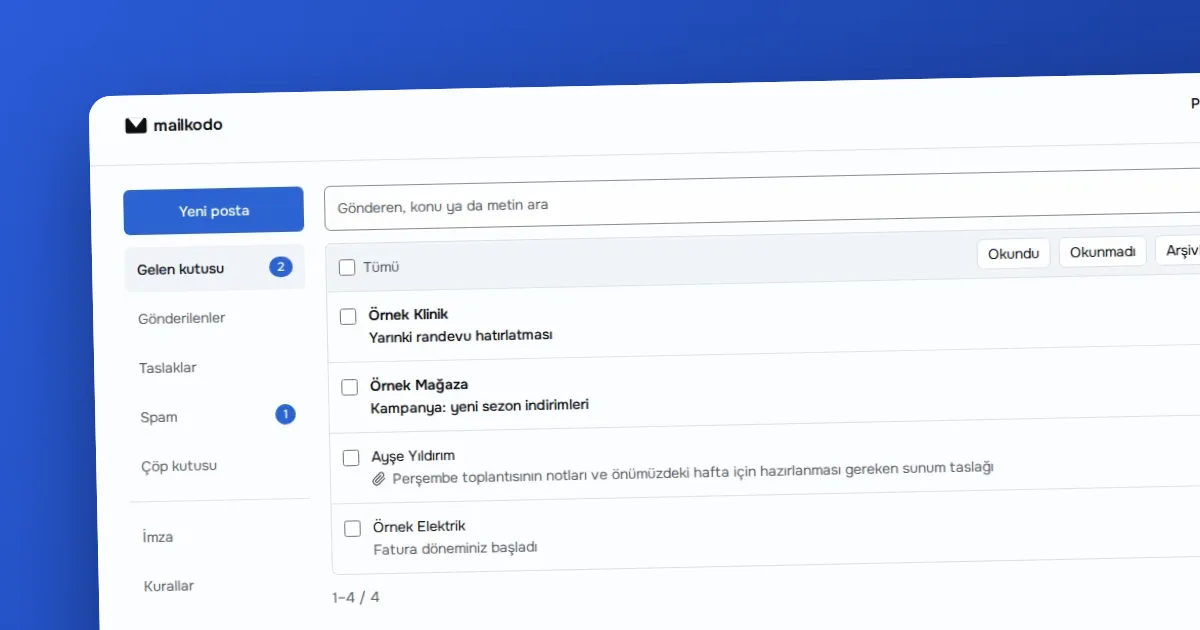
Yazar OVOKODO Ekibi · · 5 dk okuma
In short: In MAILKODO Business, one account is tied to one domain. You add the domain and write the ownership record you are given into DNS, then enter the MX, SPF and DKIM records. When the panel reads these records from DNS and sees them, the domain becomes active and you can open your mailboxes and aliases. DMARC is optional but recommended.
Three things: a domain, a panel where you can change that domain's DNS records, and the MAILKODO Business plan. Where you bought the domain does not matter as long as you can manage its DNS records. The domains of large mail providers such as Gmail and Outlook, and the domains of the OVOKODO family itself, cannot be added as "your domain"; the panel rejects them before verification.
The number of mailboxes is the quantity you buy, so a single mailbox works too. Each mailbox has a 30 GB quota, a daily sending limit of 1000 messages and 10 aliases.
dkim._domainkey add the long TXT value given in the panel. When copying, take care not to add spaces or line breaks._dmarc add the value the panel suggests, v=DMARC1; p=quarantine. It is not mandatory, but it limits forged sending.DNS changes may not spread at once. If the records do not show up, wait a few minutes and check again.
| Record | Question it answers | Required? | |---|---|---| | TXT (ownership) | Is this domain really yours? | Yes | | MX | Where is mail delivered? | Yes | | SPF | Which servers may send on behalf of this domain? | Yes | | DKIM | Did the mail change on the way; is the signature valid? | Yes | | DMARC | What should happen if SPF or DKIM fails? | No |
When you open a mailbox you choose its name; the mailbox password is shown once and is not stored. An alias receives mail for a mailbox under additional addresses; for example [email protected] and [email protected] can land in the same mailbox. You can delete a mailbox or alias from the panel.
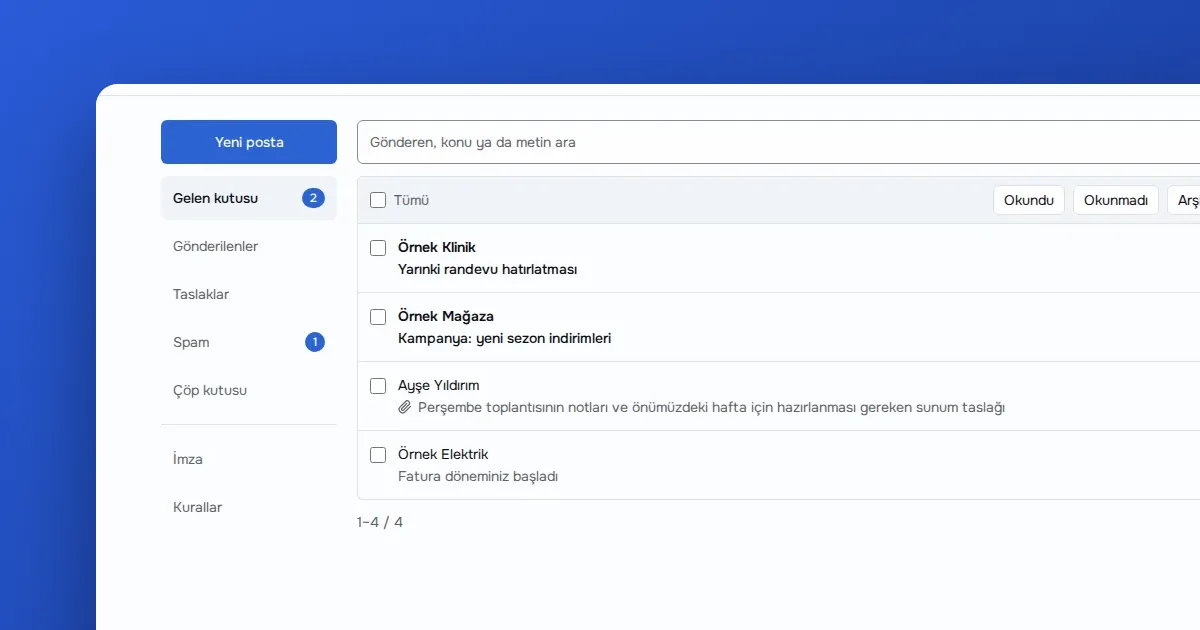
You can read mail in MAILKODO's mail screen or add the mailbox to your phone with IMAP and SMTP; the settings are in the setup section of the panel.
When the plan ends, the domain is closed on the mail server; mail is not deleted, and when the plan starts again the domain is reopened. Cancellation takes effect at the end of the period and you keep using the plan until then. Keeping a copy of important mail in another mailbox is still a good habit.
To see how the shared @mailkodo.com address differs from Business, read Shared address or your own domain?.
During a move, keeping both mailboxes open is safest. Add both the old and the new account to your mail app over IMAP; drag and copy folders from old to new. This is a general IMAP feature of the app; while copying goes on, both mailboxes stay open and the decision is yours. Change the MX record only after you have tried that the new mailbox works. After the MX changes, mail may still land in the old mailbox for a while, so do not close the old one for a few days.
Ready? Add your domain on MAILKODO.
Guide · · 5 dk okuma
Step by step: choose an address on MAILKODO, open the mailbox and add it to a mail app over IMAP and SMTP.
Yazıyı oku
Guide · · 5 dk okuma
Explains what question each of the SPF, DKIM and DMARC records answers when mail runs on a domain, and why they do not back each other up.
Yazıyı oku
Comparison · · 4 dk okuma
An honest comparison of the free @mailkodo.com address and MAILKODO Business mailboxes on your own domain, covering quota, sending limits, aliases and reputation.
Yazıyı okuMeasurement cookies measure anonymously how pages are used. They are set only if you allow them; you can change your choice from the Cookie preferences link in the footer.
We use measurement cookies to improve the site. Essential cookies are always on. · Privacy policy(opens on OVOKODO)