In short: This is not a real customer story; it is a scenario built on the product's real features. A three-person team opens three mailboxes and a few aliases in a single MAILKODO Business account, enters the DNS records and adds the mailboxes to their phones. Apart from waiting for DNS propagation, it is a short job.
The scenario: who wants what?
Picture an architecture studio: two partners and an assistant. Their domain is example-studio.com. Their wishes are clear: the partners write under their own names, when a client writes to info@ all three see it, and the assistant reads what arrives at billing@. Right now the partners use personal addresses, which creates a trust problem with clients.
Step 1: Choosing the plan and quantity
Since the team is three people, it buys three mailboxes. Because the mailbox count is the quantity purchased, growing the team only needs a higher quantity: new mailboxes can be opened immediately and the new amount applies at the next renewal. If the team shrinks, the reduction takes effect at the end of the period.
Step 2: Connecting the domain
The assistant adds the domain on the Business page. The panel gives an ownership record; this TXT record is added in the domain's DNS panel. When the record is seen, the domain is opened on the mail server and DKIM is generated. Then the MX, SPF and DKIM records are entered in turn; with the check button the status moves to "active". Finally the DMARC record is added. See the setup guide for the details.
Step 3: Opening mailboxes and aliases
| Person | Mailbox | Aliases |
|---|---|---|
| Partner 1 | [email protected] | info@ |
| Partner 2 | [email protected] | projects@ |
| Assistant | [email protected] | billing@ |
When each mailbox is opened, the password is shown once; each person saves their own in a password manager. An alias delivers mail sent to that address into the mailbox it belongs to. With 10 aliases allowed per mailbox, this layout fits easily. One point to watch: info@ is attached to only one mailbox; if all three must see it, the team has to collect that mail in a shared mailbox and share its password safely, or build the habit of forwarding inside the team. In this product an alias gives a mailbox an extra name rather than routing; the decision is the team's.
Step 4: Adding to phones
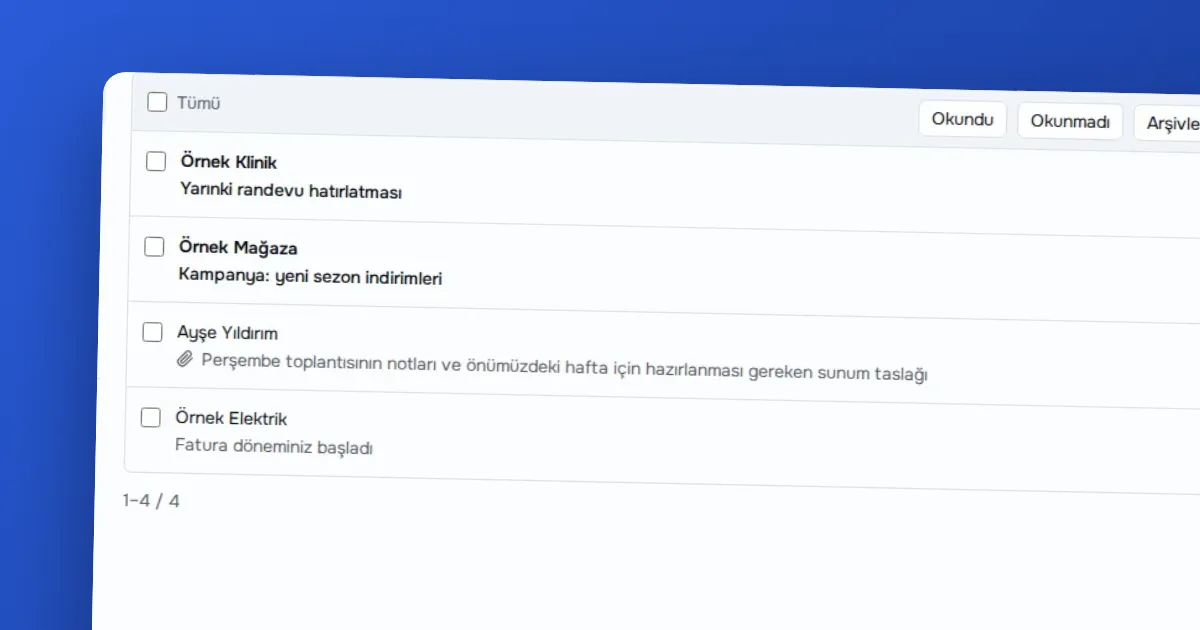
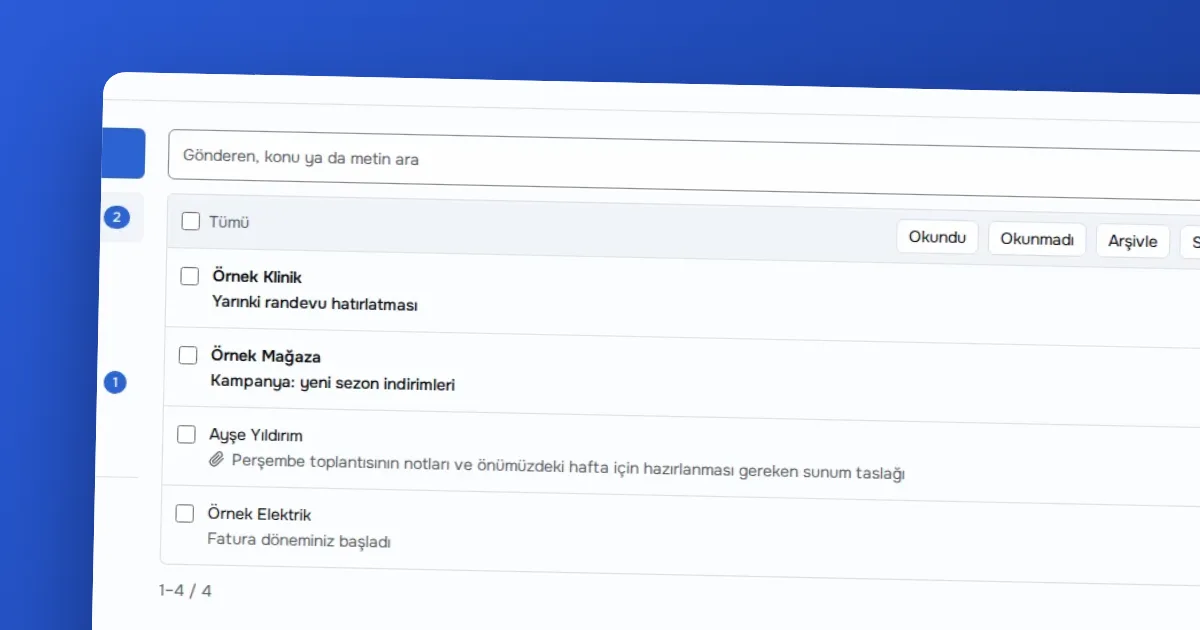
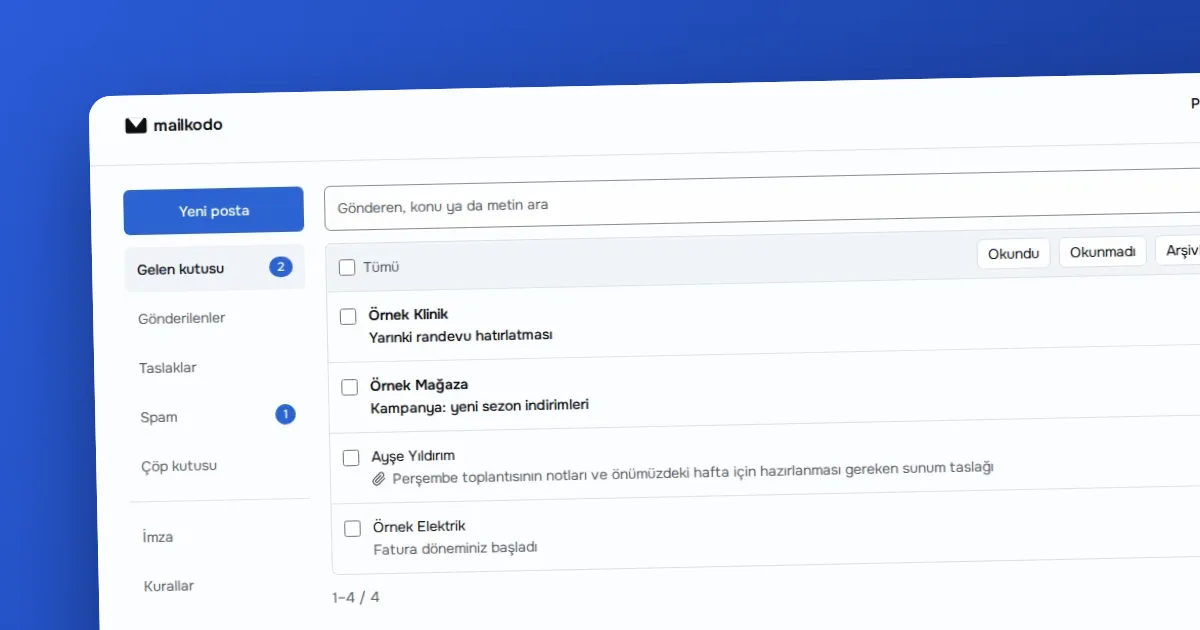
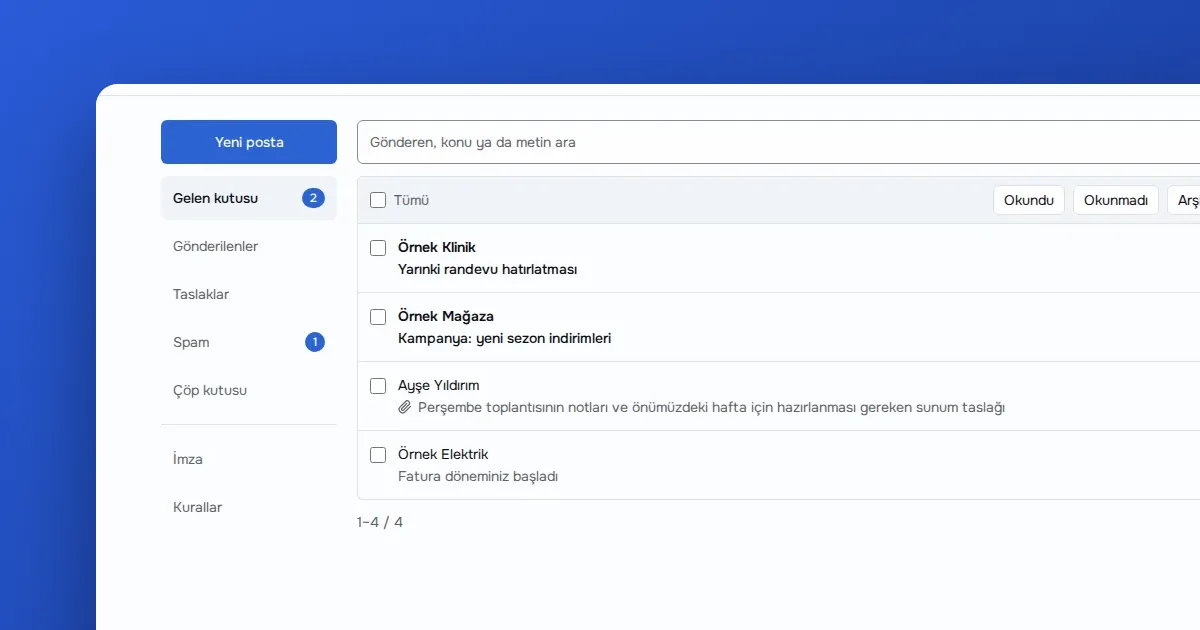
Each person adds the account to their mail app with IMAP and SMTP: username is the full address, connection security SSL/TLS, port 993 for IMAP and 465 for SMTP. They copy the server names from the setup section of the panel. They can also use webmail; the mail screen has folders, search, attachments, drafts, signature and filters.
Step 5: Moving old mail
The old personal mailboxes stay open. The partners open the old and new accounts in the same mail app as two accounts and drag important folders across to copy them. After the MX record changes, mail may still land in the old mailbox for a few days, so they do not close it right away.
Does the sending limit affect this team?
A daily limit of 1000 per mailbox is more than enough for this team. The service is not designed for bulk newsletters; a newsletter tool suits that better. Remember the limits are deliberate: to protect shared reputation, sending speed and the number of recipients in one message are also limited.
What should they not forget?
- Start the DMARC policy at
quarantine and watch for a few weeks.
- Put the domain renewal date in the calendar.
- Keep mailbox passwords only in a password manager.
- If they need a calendar and address book, MAILKODO's own mail screen has none; the team needs another tool.
Step 6: How do they check that it works?
When setup is done, the assistant sends a message to each mailbox from another address and tries every alias one by one: do info@, projects@ and billing@ land in the right mailbox? Then a message is sent out from each mailbox and, on the receiving side, the headers are checked for the SPF and DKIM results. If everything passes, the team can announce its new address to clients. If something does not pass, the panel's check button shows which record is missing; because DNS changes do not spread at once, wait a few minutes after a fix.
Conclusion
The work in this setup is following the steps the product offers in order: add the domain, enter the records, check, open the mailboxes. No step is hidden and every limit is written in the panel.
Ready? Take a look at MAILKODO Business.